Blog - UnlockTrue Ramdisk
- Category
- FRPFILE
- SAM FRP INDIA USB UnlockTrue
- SAMSUNG FRP UNLOCK VIA IMEI UnlockTrue
- Become a Reseller UnlockTrue
- UT BYPASS A12+ TOOL
- UnlockTrue Ramdisk
- Tools Rent Service UnlockTrue
- Honor Frp Key UnlockTrue
- MDM FIX TOOL OFFICAL DISTRIBUTOR UnlockTrue
- Chimera Tool Official Reseller UnlockTrue
- Chimera Tool Activation UnlockTrue
- USB Redirector – Lifetime Without VPN UnlockTrue
- Cheetah Tool UnlockTrue
- Eid ul Adha UnlockTrue
- iRemoval PRO ReBypass Now Available – Signal Bypass UnlockTrue
- iRemoval Pro iCloud Bypass UnlockTrue
- Dhru Fusion IMEI Unlock Guide 2025 UnlockTrue
- New Open Menu Without Pc UnlockTrue
- OPEN MENU FMI OFF UnlockTrue
- DZKJ Activation UnlockTrue
- Master PIN UnlockTrue
- Get ChatGPT, Grammarly, Netflix, Canva & More – All in One Place
- Payment Details UnlockTrue
- iRemoval Pro Premium v.5 UnlockTrue
- Customer Experience
- UnlockTrue Latest News
- Network Unlock UnlockTrue.
0UnlockTrue Ramdisk Tool Download)
25 Feb, 2026UnlockTrue Ramdisk Tool: The Ultimate iPhone & iPad Unlocking Solution (iOS 12-18.x Support)
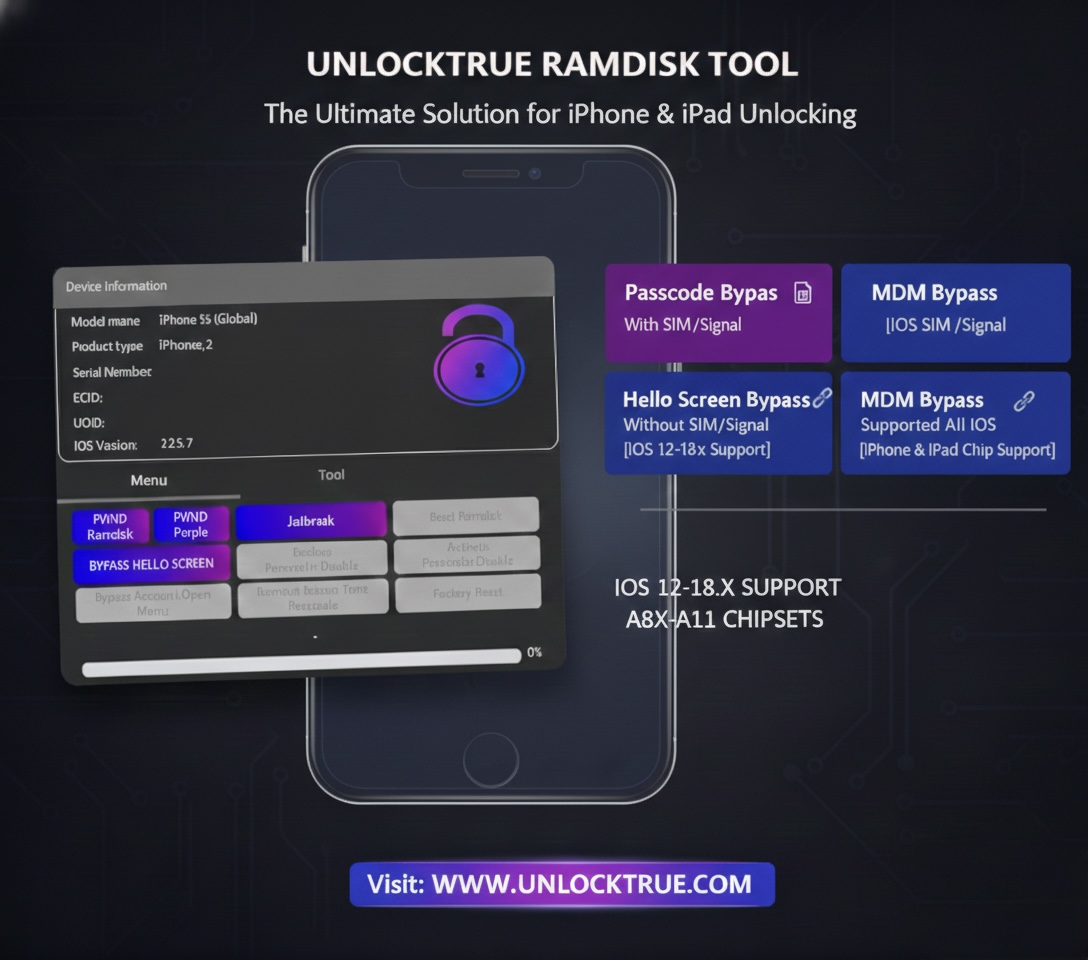
Are you stuck on the iCloud Activation Lock screen? Or perhaps you've forgotten your iPhone passcode? In the world of iOS servicing, UnlockTrue Ramdisk Tool has emerged as a game-changer for technicians and users alike. This powerful Windows-based utility makes bypassing complex locks simpler than ever.
What is UnlockTrue Ramdisk Tool?
UnlockTrue Ramdisk is a professional software designed to bypass various security locks on iPhones and iPads. It specifically targets devices with A8x to A11 chipsets and offers seamless performance on the latest iOS versions.
Supported Versions & Hardware:
• iOS Compatibility: iOS 12, 13, 14, 15, 16, 17, and the latest iOS 18.x.
• Chipset Support: Apple A8x to A11 (From iPhone 5s up to iPhone X).
Key Features of UnlockTrue Ramdisk
1. Passcode Bypass (With SIM & Signal)
If your device is disabled or stuck on the passcode screen, this tool allows you to bypass the lock while retaining SIM card functionality. You can make calls and use mobile data without any issues after the bypass.
2. Hello Screen Bypass (No SIM/Signal)
For restored devices stuck on the "Hello" or Activation Lock screen, this feature provides a quick entry to the home screen for iOS 12 through iOS 18.x.
3. MDM Bypass (Full iOS Support)
Stuck with a Corporate or Mobile Device Management (MDM) lock? UnlockTrue Ramdisk can remove MDM profiles across all iOS versions instantly.
4. Integrated One-Click Tools
The tool features built-in options for PWND Ramdisk, Jailbreaking, and Factory Reset, eliminating the need for multiple complex software setups.
How to Use UnlockTrue Ramdisk Tool
1. Download: Visit the official website www.unlocktrue.com to download and install the latest version.
2. Connect Device: Connect your iPhone/iPad via USB and put it into DFU Mode.
3. Identify: The tool will automatically detect your device info (Model, ECID, UDID, and iOS Version).
4. Execute: Select your required operation (e.g., Bypass Hello Screen or Backup Passcode).
5. Complete: Wait for the progress bar to reach 100%. Your device will reboot, fully unlocked!
Why Choose UnlockTrue Ramdisk?
• User-Friendly Interface: Dark-themed, clean, and modern UI for easy navigation.
• High Success Rate: Optimized scripts ensure a high success rate on supported chipsets.
• iOS 18 Ready: Stay ahead of the curve with support for the newest Apple firmware.
Frequently Asked Questions (FAQ)
Q: Does it support iPhone 11, 12, or 13?
A: No, this tool currently supports A8x-A11 devices (up to iPhone X).
Q: Is it safe for my device?
A: Yes, it is a software-based bypass that does not harm your device's hardware.
Q: Where can I get support?
A: Official documentation and updates are available at www.unlocktrue.com.
0UNLOCKTRUE RAMDISK TOOL
12 May, 2025Unlock iPhone Passcode or Disabled Mode with RAMDISK – UNLOCKTRUE Windows Tool Guide
UNLOCKTRUE Windows Tool is a powerful solution to unlock iPhones (A7–A11) stuck on passcode or disabled screen using the RAMDISK DFU exploit method. Follow this complete step-by-step guide below:
Step 1: Boot Pwnd Ramdisk (DFU MODE)
Enter DFU mode on your device and run the exploit to gain RAM access via checkm8.
Step 2: Boot RAMDISK
This loads a custom temporary OS into RAM, giving you low-level access to the device.
Step 3: Select iOS Version RAMDISK
Select the correct RAMDISK based on your iOS version:
- iOS 14 → Ramdisk iOS 14
- iOS 15 → Ramdisk iOS 15
- iOS 16 → Ramdisk iOS 16
- iOS 17 → Ramdisk iOS 17
- iOS 18+ → Ramdisk iOS 18+
Use tools like 3uTools to verify your iOS version.
Step 4: Backup Passcode / Disable Data
This step saves critical system data for unlocking later.
Step 5: Factory Reset (Low-level Format)
Cleanly erases user data without affecting iOS firmware.
Step 6: Boot Pwnd Ramdisk Again
Repeat DFU mode and exploit to reload RAMDISK.
Step 7: Boot RAMDISK (Again)
Reboot the temporary OS to prepare for activation.
Step 8: Re-select iOS Version
Ensure the same correct RAMDISK version is selected.
Step 9: Activate Device (Remove Passcode/Disable)
Unlock the phone and skip the disabled/passcode screen. iCloud is not bypassed in this step.
Step 10: DONE
The iPhone is now ready to use. Set it up or restore from backup.
Supported Devices
- A7 – Supported
- A8 – Supported
- A9 – Supported
- A10 – Supported
- A11 – Supported
- A12+ – Not Supported
Note: This method does not bypass iCloud lock. It's designed for passcode and disabled bypass only.
Watch Step-by-Step Video Tutorial
Download UNLOCKTRUE Tool (Windows)
Download the tool from UnlockTrue.com and get started!